Library APIs
Development Environment
The library APIs of pico-jxglib work along with the Pico SDK. Below is a quick introduction to set up the development environment:
Quick Setup of Pico SDK
- Install Visual Studio Code (VSCode) from here. It's free and available for Windows, macOS, and Linux.
- Launch VSCode and press
Ctrl+Shift+Pto open the command palette, then typeExtensions: Install Extensionsand select it. - Search
Raspberry Pi Picoin the extensions marketplace and install it.
For more detailed information, please see Getting Started with Pico SDK. It also gives you a quick introduction to VSCode, which is used throughout the documentation here.
How to Use pico-jxglib in Your Project
If you don't have a Pico SDK project yet, create a new one as described below:
Create Pico SDK Project
- In VSCode, run
>Raspberry Pi Pico: New Pico Projectin the command palette. -
In the dialog below, select
C/C++.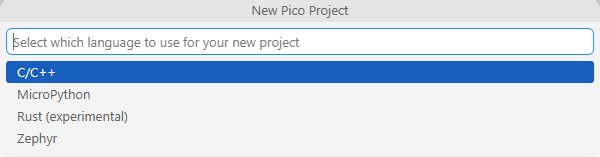
-
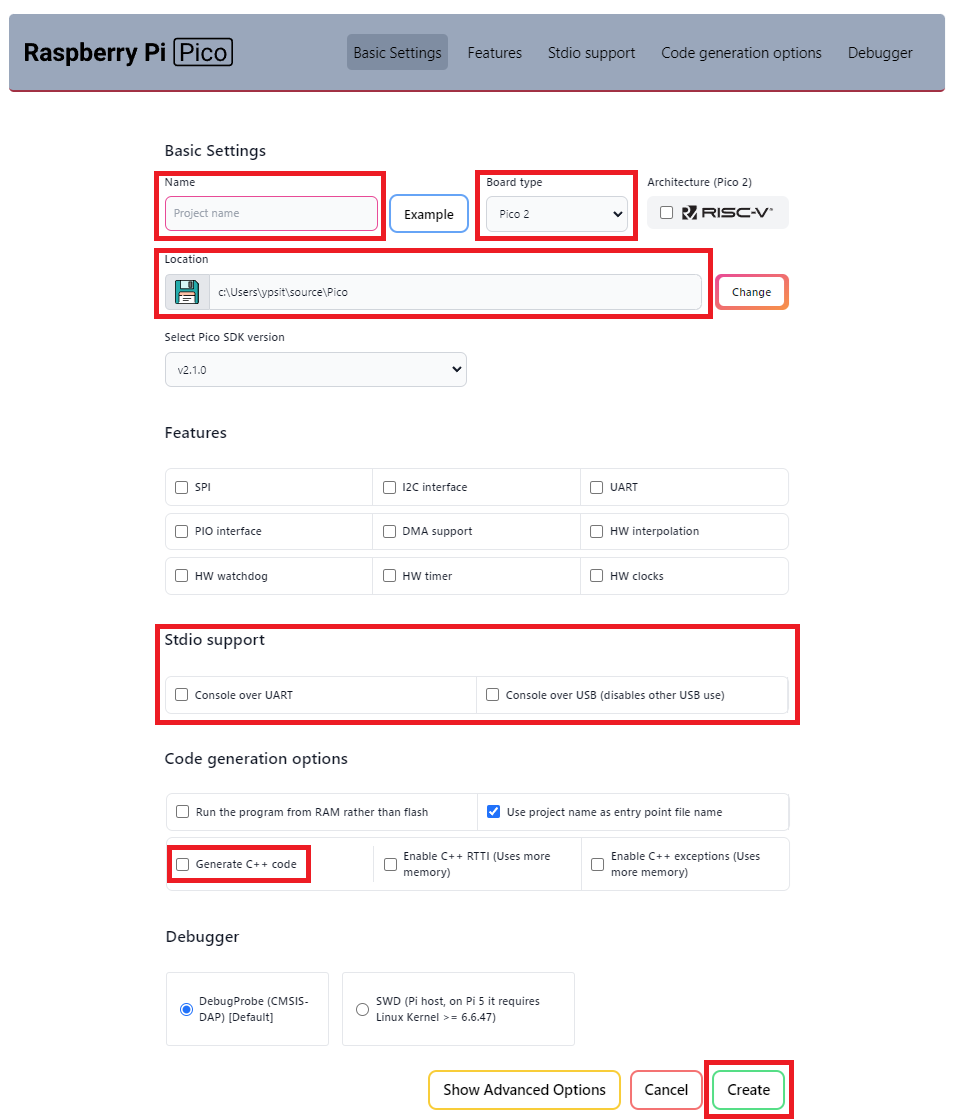
Create a project with the following settings:
- Name ... Enter the project name.
- Board type ... Select your board type.
- Location ... Select the parent directory where the project directory will be created.
- Stdio support ... Check
Console over UARTand/orConsole over USBfor stdio. DON'T checkConsole over USBwhen you use LABOPlatform or other USB features because they conflict with each other. - Code generation options ... Check
Generate C++ code.
When you create a new project with the name your-project, the project directory will look like this:
Then, clone the pico-jxglib repository from GitHub as follows:
Clone the Repository
Change the current directory to the parent directory where you want to clone the pico-jxglib repository and run the following commands:
$ git clone https://github.com/ypsitau/pico-jxglib.git
$ cd pico-jxglib
$ git submodule update --init --recursive
pico-jxglib is updated almost daily. If you've already cloned it, run the following command in the pico-jxglib directory to get the latest version:
A directory from a Git repository can safely be moved to another location even after cloning.
But, wait. Where should we put the pico-jxglib directory? There are two ways of arranging the directories of your project and pico-jxglib:
Inside Style
pico-jxglib is placed inside your-project directory like this:
Add the following command to your CMakeLists.txt:
This style is useful when you want to include pico-jxglib in your project. It specifically works well with Git's submodule feature, allowing you to manage pico-jxglib as part of your project repository.
Outside Style
pico-jxglib is placed in the same directory as your-project like this:
Add the following command to your CMakeLists.txt:
Second argument pico-jxglib is required in add_subdirectory() because the added directory contains a reference to a parent directory. The string in the second argument is used as the output directory name for generated files. As long as it doesn't conflict with other directories in build, you can use any name.
This style is useful when you want to share pico-jxglib across multiple projects.
Sample Programs
Using the project created above, let's create actual programs that use pico-jxglib. There are two sample programs:
- Blinky Program ... The simplest program that blinks an LED connected to a GPIO.
- LABOPlatform Program ... A more complicated program that has the same functionality as pico-jxgLABO, including the interactive shell and built-in logic analyzer.
Modify the CMakeLists.txt and your-project.cpp files as described below. It is assumed that pico-jxglib is placed in the same directory as your-project (outside style).
Add the following lines to the end of CMakeLists.txt:
target_link_libraries(your-project jxglib_Common)
add_subdirectory(${CMAKE_CURRENT_LIST_DIR}/../pico-jxglib pico-jxglib)
Edit your-project.cpp as follows:
Libraries
pico-jxglib's libraries are prefixed with jxglib_. Here is the list of libraries in pico-jxglib:
jxglib_Common,
jxglib_Camera,
jxglib_ShellCmd_Camera,
jxglib_Camera_OV7670,
jxglib_ShellCmd_Camera_OV7670,
jxglib_Canvas,
jxglib_GPIOInfo,
jxglib_KeyboardTest,
jxglib_BinaryInfo,
jxglib_ShellCmd_Basic,
jxglib_ShellCmd_GPIO,
jxglib_ShellCmd_ADC,
jxglib_LCD1602,
jxglib_Device_MCP4726,
jxglib_Device_SDCard,
jxglib_ShellCmd_Device_SDCard,
jxglib_StepMotor,
jxglib_Device_WS2812,
jxglib_ShellCmd_Device_WS2812,
jxglib_Display,
jxglib_ShellCmd_Display,
jxglib_Display_SSD1306,
jxglib_ShellCmd_Display_SSD1306,
jxglib_Dislay_TFT_LCD,
jxglib_Display_ST7735,
jxglib_Display_ST7789,
jxglib_Display_ILI9341,
jxglib_Display_ILI9488,
jxglib_ShellCmd_Display_TFT_LCD,
jxglib_Display_VideoTransmitter,
jxglib_ShellCmd_Display_VideoTransmitter,
jxglib_Display_WS2812,
jxglib_ShellCmd_Display_WS2812,
jxglib_DMA,
jxglib_Drawable,
jxglib_DrawableTest,
jxglib_Flash,
jxglib_ShellCmd_Flash,
jxglib_Font,
jxglib_ShellCmd_Font,
jxglib_FS,
jxglib_ShellCmd_FS,
jxglib_FAT,
jxglib_FAT_SDCard,
jxglib_FAT_USBMSC,
jxglib_FAT_Flash,
jxglib_FAT_RAMDisk,
jxglib_LFS,
jxglib_LFS_Flash,
jxglib_Hash,
jxglib_I2C,
jxglib_ShellCmd_I2C,
jxglib_Image,
jxglib_ImageFile,
jxglib_ShellCmd_ImageFile,
jxglib_Interp,
jxglib_JSON,
jxglib_LABOPlatform,
jxglib_LABOPlatform_FullCmd,
jxglib_LineBuff,
jxglib_LogicAnalyzer,
jxglib_ShellCmd_LogicAnalyzer,
jxglib_LVGL,
jxglib_ML,
jxglib_Mouse,
jxglib_Net,
jxglib_NetUtil,
jxglib_ShellCmd_Net,
jxglib_ShellCmd_NetUtil,
jxglib_ShellCmd_LED,
jxglib_MQTT,
jxglib_Net_TCP,
jxglib_Net_Telnet,
jxglib_ShellCmd_Net_Telnet,
jxglib_Net_UDP,
jxglib_PIO,
jxglib_ShellCmd_PIO,
jxglib_PWM,
jxglib_ShellCmd_PWM,
jxglib_Resets,
jxglib_ShellCmd_Resets,
jxglib_RTC,
jxglib_ShellCmd_RTC,
jxglib_RTC_DS3231,
jxglib_ShellCmd_RTC_DS3231,
jxglib_RTC_Pico,
jxglib_Serial,
jxglib_TEK4010,
jxglib_TelePlot,
jxglib_Shell,
jxglib_SPI,
jxglib_ShellCmd_SPI,
jxglib_Terminal,
jxglib_TouchScreen,
jxglib_TouchScreen_TSC2046,
jxglib_UART,
jxglib_ShellCmd_UART,
jxglib_USBDevice,
jxglib_USBDevice_CDCSerial,
jxglib_USBDevice_MSCDrive,
jxglib_USBDevice_VideoTransmitter,
jxglib_USBHost,
jxglib_ShellCmd_USBHost_MSC,
jxglib_VideoTransmitter,