Camera - OV7670
The OV7670 is a VGA resolution (640x480) camera module developed by Omnivision. It is a very popular camera module, widely used in electronics projects due to its low cost (about $5 USD). However, there are not many general-purpose libraries available, so integrating it into your own project usually requires some programming skill.
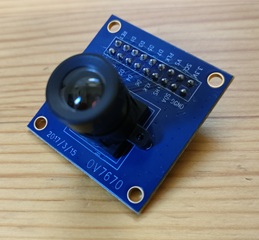
With pico-jxgLABO, you can set up the OV7670 camera module using commands, making it easy to test and experiment with the camera without writing code. You can change the resolution and adjust parameters via commands, so you can try things out before moving on to more advanced programming.
This article demonstrates the following experiments using this camera module:
Experiment 1: Start a camera app on a host PC (Windows) connected to the Pico board via USB, and stream video from the OV7670 camera module. This experiment only requires the OV7670 camera module, Pico board, and host PC.
Experiment 2: Add a TFT LCD display module (ST7789) and display the camera image in real time on the display.
The host PC for development and testing is assumed to be Windows.
Demo Video
About the OV7670 Camera Module
For modules without FIFO memory, the OV7670 outputs image data via an 8-bit parallel data bus, synchronized by a clock. Register settings and configuration are performed via the I2C interface.
The OV7670 camera module signals are as follows:
| Signal Name | Description |
|---|---|
| 3.3V, GND | Power supply |
| PWDN | Power down control. Connect to GND for normal operation |
| RESET | Reset input. Active low. Connect to 3.3V for normal operation |
| D0-D7 | 8-bit parallel data bus |
| XCLK | External clock input. Usually supplied with a 24 MHz square wave |
| PCLK | Pixel clock output. Pulses for each pixel |
| HREF | Horizontal reference signal. Pixel data is valid while this is active |
| VSYNC | Vertical sync signal. Indicates the start of a frame |
| SDA | I2C data line |
| SCL | I2C clock line |
Even without register configuration, supplying a clock to XCLK will start image data output. The image data acquisition flow is as follows:
- A VSYNC pulse indicates the start of a frame. Detect the transition from Low to High on VSYNC.
- While HREF is High, read D0-D7 data on each rising edge of PCLK (Low to High transition). Pixel data is invalid while HREF is Low.
- Repeat step 2 for the number of pixels in a frame.
Official datasheets are not always available from the manufacturer. The following PDF files were referenced for this article1. The Implementation Guide is especially useful, as it categorizes the register groups by function.
▶️ Advanced Information Preliminary Datasheet ▶️ OV7670 Implementation Guide (V1.0)
Note that these documents are incomplete and some important information is missing. For example, to get color images, you need to set a register: "set register 0xB0 to 0x84". However, the documents do not explain what register 0xB0 controls or what the value 0x84 means. For these details, you may need to refer to code written by previous developers who likely reverse-engineered the device.
Connecting the OV7670 Camera Module
The OV7670 camera module connects to the Pico board using the I2C interface and several GPIO pins. Refer to the wiring example below:

You can customize the GPIO pins via commands. Keep the following points in mind:
- Connect 3.3V and GND to power
- Connect PWDN to GND and RESET to 3.3V
- Connect the 8 data lines D0 to D7 to consecutive GPIO pins
- Connect XCLK, PCLK, HREF, and VSYNC to any GPIO pins
- Connect SDA and SCL to either I2C0 or I2C1 on the Pico board
The signal lines carry high-frequency currents, with XCLK reaching up to 24 MHz. Shorter wires are better, but in practice, even 16 cm jumper wires worked fine in my tests.

Run the following commands to set up the I2C interface and camera module:
L:>i2c0 -p 16,17 --baudrate:100000
L:>camera-ov7670 setup {i2c:0 d0:2 xclk:10 pclk:11 href:12 vsync:13}
- The
i2c0command sets I2C0 to GPIO16 (SDA) and GPIO17 (SCL) at 100 kHz. - The
camera-ov7670 setupcommand specifies the connection pins for the OV7670 camera module. I2C0 is selected for I2C. D0 is connected to GPIO2, and D1-D7 are automatically assigned to GPIO3-GPIO9. XCLK, PCLK, HREF, and VSYNC are connected to GPIO10, GPIO11, GPIO12, and GPIO13, respectively.
Now the OV7670 camera module is ready to use. Run the dump subcommand of camera-ov7670 to check the camera module's register settings:
L:/>camera-ov7670 dump
00 3C 80 80 00 01 0B 61 40 9D 00 76 73 04 00 01 02
10 7F 01 04 EF 20 02 00 11 61 03 7B 00 7F A2 04 00
20 04 02 01 00 75 63 A5 80 80 07 00 00 80 00 00 61
30 08 30 80 08 11 1A 00 3F 01 00 00 08 68 C0 19 00
40 11 08 00 14 F0 45 61 51 79 00 00 01 00 00 00 80
50 80 00 22 5E 80 00 40 80 1E 00 00 01 00 00 00 F0
60 F0 F0 00 00 04 20 05 80 80 01 80 4A 0A 55 11 9A
70 3A 35 11 F1 11 0F C1 10 00 00 20 1C 28 3C 55 68
80 76 80 88 8F 96 A3 AF C4 D7 E8 00 00 00 0F 00 00
90 00 00 00 00 04 08 01 01 10 40 40 20 00 99 7F 78
A0 68 03 02 00 00 05 DF DF F0 90 94 07 00 00 00 00
B0 84 04 00 82 00 20 00 66 00 06 00 00 00 00 00 00
C0 00 00 00 00 00 00 00 00 06 CE
i2c0 -p 16,17 --baudrate:100000
Experiment 1: Video Streaming to Host PC
Start the camera app on a host PC (Windows) connected to the Pico board via USB, and display video streaming from the OV7670 camera module.
-
Connect the host PC and Pico board with a USB cable.
-
Create a
.startupfile in the root directory of the Pico board'sL:drive with the following content. TheL:drive appears as a USB mass storage device on the host PC, so you can create this file with a text editor on your PC.
text:.startup
usbdev-video-transmitter setup
i2c0 -p 16,17 --baudrate:100000
camera-ov7670 setup {i2c:0 d0:2 xclk:10 pclk:11 href:12 vsync:13}
The usbdev-video-transmitter setup command sets up the Pico board as a USB video device. The remaining commands set up the OV7670 camera module.
Unplug and replug the USB cable to reboot the Pico board. It should now be recognized as a USB video device.
- On the host PC, search for "Camera" in the taskbar and start the camera app. If recognized correctly, "pico-jxgLABO VideoTransmitter" will be displayed at startup.

If multiple camera devices are connected to the PC, a camera selection button will appear in the top right of the app. Switch to the screen showing "pico-jxgLABO VideoTransmitter".

- In the terminal, run the following command to start video streaming from the OV7670 camera module to the host PC:
If the camera app displays video from the OV7670 camera module, it is working.

Run the camera fps command to check the current frame rate:
The screen size is set to QQVGA (160x120), but the USB transfer speed is a bottleneck, so the frame rate is only about 6 fps.
Experiment 2: Real-Time Display on TFT Display
Display the camera image in real time on an ST7789 TFT display module.
- Connect the OV7670 camera module and ST7789 TFT display module to the Pico board as shown below:


- Run the following commands to set up the OV7670 camera module and ST7789 TFT display module:
L:>i2c0 -p 16,17 --baudrate:100000
L:>camera-ov7670 setup {i2c:0 d0:2 xclk:10 pclk:11 href:12 vsync:13}
L:>spi1 -p 14,15 --baudrate:50000000
L:>display-st7789 setup {spi:1 rst:18 dc:19 cs:20 bl:21 dir:rotate90}
- Test the TFT display by running the following command. If the entire screen turns red, the display is working:
- Run the
display-startsubcommand of thecameracommand to display the OV7670 camera image on the TFT display in real time:
Run the camera fps command to check the current frame rate:
The maximum frame rate of the OV7670 is 30 fps, so this is nearly full speed.
When outputting to the TFT display module, you can also change the resolution. Use the resolution subcommand of camera-ov7670 to change to one of the following resolutions:
| Resolution Name | Pixels | RAM Usage |
|---|---|---|
qvga |
320 x 240 | 153.6 kB |
qqvga |
160 x 120 | 38.4 kB |
qqqvga |
80 x 60 | 9.6 kB |
For example, to change the resolution to QQVGA (160x120):
The maximum resolution of the OV7670 camera module is VGA (640x480), but the image data size is 614.4 kB, which exceeds the RAM size of the Pico board (Pico: 264 kB, Pico2: 520 kB), so it cannot be used.
Automating Initialization with a .startup File
The setup commands for the OV7670 camera module are a bit long, so you can put them in a .startup file to run them automatically when the board starts up.
Here is an example .startup file that sets up the USB video device, OV7670 camera module, and ST7789 TFT display module:
```text:.startup usbdev-video-transmitter setup
camera-ov7670 setup {i2c:0 d0:2 xclk:10 pclk:11 href:12 vsync:13}
spi1 -p 14,15 --baudrate:50000000 display-st7789 setup {spi:1 rst:18 dc:19 cs:20 bl:21 dir:rotate90}
### Setting Various Parameters
The `camera-ov7670` command allows you to set various parameters using subcommands. Use the `--help` option to see a list of available subcommands:
```text
L:/>camera-ov7670 --help
Usage: camera-ov7670 [OPTION]... [SUBCMD...]
Options:
-h --help prints this help
Sub Commands:
setup setup a OV7670 camera module with the given parameters:
{i2c:BUS d0:PIN xclk:PIN pclk:PIN href:PIN vsync:PIN [pwdn:PIN] [reset:PIN] [freq:FREQ]}
reso:RESO gets/sets resolution: vga, qvga, qqvga, qqqvga
format:FORMAT gets/sets format: rgb565, yuv422
dump dumps all OV7670 registers
ccir656:[on|off] enables/disables CCIR656 mode
scale:[on|off] enables/disables scaling
dcw:[on|off] enables/disables DCW
color-bar:[on|off] enables/disables color bar
agc:[on|off] enables/disables AGC
awb:[on|off] enables/disables AWB
aec:[on|off] enables/disables AEC
mirror:[on|off] enables/disables mirror
vflip:[on|off] enables/disables vertical flip
:
:
Here are some examples of main subcommands:
mirror: Enable/disable mirror (horizontal flip)
vflip: Enable/disable vertical flip
brightness: Set brightness (-127 to +127, default 0)
contrast: Set contrast (0 to 255, default 64)
sharpness: Set sharpness (0 to 31, default 0)
awb,awb-red,awb-blue,awb-green: Enable/disable auto white balance (AWB) and set gain for each color (0 to 255, default 128). Ifawbis set toon, the gains are adjusted automatically. If set tooff, the values specified byawb-red,awb-blue, andawb-greenare used.
-
Since official links may break, these are hosted on my GitHub repository. ↩