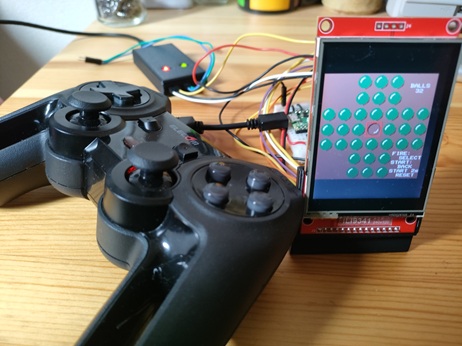
Games
Enjoying Games with a Gamepad
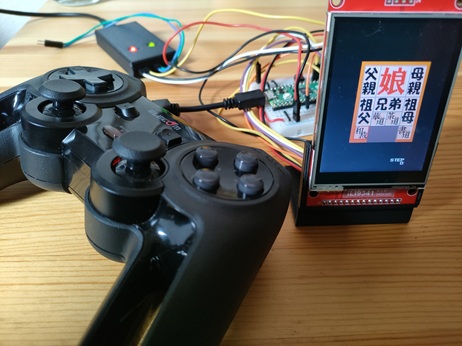
Now that you've connected a gamepad, you probably want to enjoy some games—the main purpose of the device! I found some high-quality games that run on the Pico board in KenKen's LCD Game Development with Raspberry Pi Pico, and made it possible to play these games using a gamepad.
The button and joystick assignments for the gamepad are as follows. As mentioned earlier, the actual mapping of each button and analog joystick may differ depending on the model, but this general assignment should work for most cases (excluding the right analog joystick).
- Left and right analog joysticks ... Up, Down, Left, Right
- D-pad ... Up, Down, Left, Right
- A, B, X, Y buttons ... Fire
- Other buttons ... Start
For wiring, please refer to the [diagram above].
How to Build
-
Clone the repositories.
git clone https://github.com/ypsitau/picopacman git clone https://github.com/ypsitau/picotetris git clone https://github.com/ypsitau/picoinvader git clone https://github.com/ypsitau/picohakomusu git clone https://github.com/ypsitau/picopegsol git clone https://github.com/ypsitau/pico-jxglib cd pico-jxglib git submodule update --init -
Move to the directory of the game you want to build and run
code .to launch VSCode. When the message boxDo you want to import this project as Raspberry Pi Pico project?appears, click[Yes]. -
The
Import Pico Projectpane will open. Review the contents and click[Import]. -
From the command palette, run
>Raspberry Pi Pico: Switch Boardand select the board you want to use. -
From the command palette, run
>CMake: Buildor press[F7]. When theSelect a kit for projectcombo box appears, selectPico Using compilers:...to build the project.
By default, the ILI9341 is set as the TFT LCD. If you want to use the ST7789, uncomment the //#define USE_ST7789 line in ili9341_spi.c.
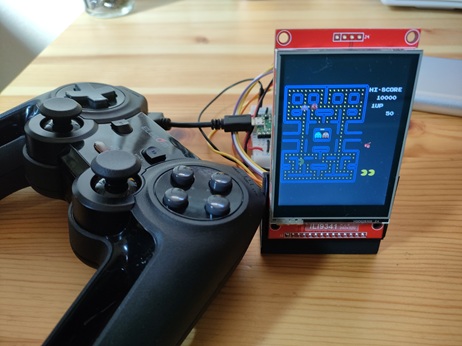
Pac-Man
UF2 files
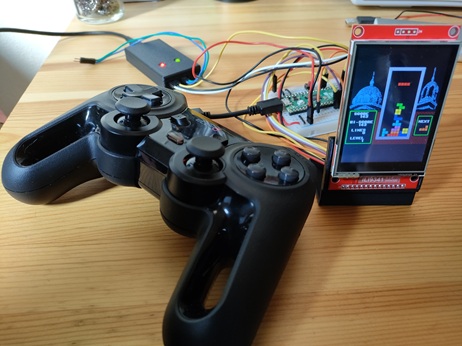
Tetris
UF2 files
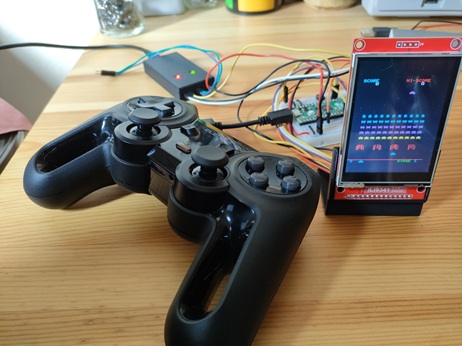
Invader Game
UF2 files
Hakoniwa Puzzle
Peg Solitaire