Direct Control of WS2812 LEDs
You can control WS2812 LEDs directly with the ws2812 command.
First, use the setup subcommand to set the connection information for the WS2812. Specify the data input pin with the din parameter.
WS2812 LEDs are very bright, so you can adjust the brightness with the brightness subcommand. The brightness can be set from 0.0 (off) to 1.0 (maximum). The following sets the brightness to 0.1 (10% of maximum).
Here are some hardware-specific examples:
- For the Speed Studio XIAO RP2040 board, the built-in WS2812 DIN pin is connected to GPIO12. The VCC is connected to GPIO11, so set this pin as a digital output and output 1.
- For the Waveshare RP2040-Zero board, the built-in WS2812 DIN pin is connected to GPIO16. Set it as follows:
- For external LED strips or matrix modules, the setup is the same. For example, if you connect these devices to GPIO2:
Below, we explain how to operate using a circuit with an LED strip connected to GPIO2.
Use the put subcommand to set the color of the LED. For example, to light up red:
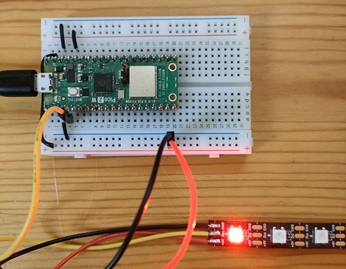
You can also specify the color using a hexadecimal color code:
If you run the put subcommand multiple times, you can set the colors of multiple LEDs connected in series:
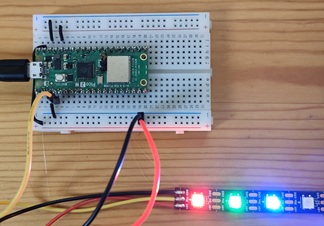
The colors are set in order from the LED closest to the Pico board.