Multi-Color LED (WS2812)
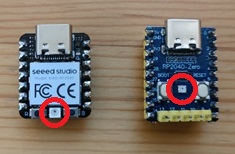
XIAO RP2040 and Waveshare RP2040-Zero boards have a built-in multi-color LED (WS2812) that can display various colors by controlling the RGB values. You can use the ws2812 command to control it.
Setup
Although these boards are equipped with the same WS2812 LED, the connection information differs, so you need to set it up according to your board.
XIAO RP2040
For the Speed Studio XIAO RP2040 board, the built-in WS2812 DIN pin is connected to GPIO12. The VCC is connected to GPIO11, so set this pin as a digital output and output 1.
Waveshare RP2040-Zero
For the Waveshare RP2040-Zero board, the built-in WS2812 DIN pin is connected to GPIO16. Set it as follows:
Control the LED
Use the put subcommand to set the color of the LED. For example, to light up red:
You can also specify the color using a hexadecimal color code:
To turn off the LED, set the color to black:
You can blink the LED by alternating between a color and black with the repeat subcommand. The following example blinks blue every 500ms:
Command Reference
ws2812
Usage: ws2812 [OPTION]... [PIN [COMMAND]...]
Options:
 -h --help       prints this help
 -b --brightness set brightness (0.0 - 1.0)
Sub Commands:
 sleep:MSEC           sleep for specified milliseconds
 repeat[:N] {CMD...}  repeat the commands N times (default: infinite)
 setup                setup a WS2812 device with the given parameters: {din:PIN}
 brightness:RATIO     set brightness (RATIO: 0.0 - 1.0)
 put:COLOR            put the color (COLOR format: #RRGGBB or color name)