Sample Program
Creating the Monitor Program
Let's create a monitor program that displays the gamepad's button and joystick information on a TFT LCD.
Wiring Diagram
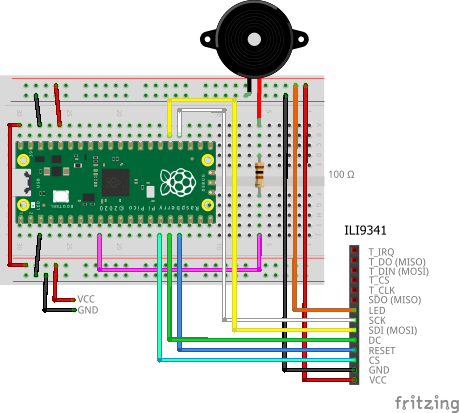
Below is a breadboard wiring diagram using the ILI9341 TFT LCD. The USB gamepad is connected via an OTG cable that converts from microB to type A. The piezo buzzer is for the game introduced later.
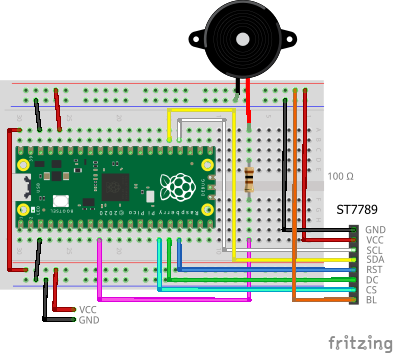
Below is a breadboard wiring diagram using the ST7789 TFT LCD.
Creating the Project
From the VSCode command palette, run >Raspberry Pi Pico: New Pico Project and create a project with the following settings. For details on creating a Pico SDK project, building, and writing to the board, see "Getting Started with the Pico SDK".
- Name ... Enter the project name. For example, enter
usbhost-gamepad-monitor.
- Board type ... Select the board type.
- Location ... Select the parent directory where the project directory will be created.
- Stdio support ... Leave both unchecked.
- Code generation options ... Check
Generate C++ code.
Assume the project directory and pico-jxglib directory are arranged as follows:
├── pico-jxglib/
└── usbhost-gamepad-monitor/
    ├── CMakeLists.txt
    ├── usbhost-gamepad-monitor.cpp
    └── ...
Add the following lines to the end of CMakeLists.txt:
| CMakeLists.txt |
|---|
| target_link_libraries(usbhost-gamepad-monitor jxglib_USBHost jxglib_Display_ILI9341 jxglib_Display_ST7789)
add_subdirectory(${CMAKE_CURRENT_LIST_DIR}/../pico-jxglib pico-jxglib)
jxglib_configure_USBHost(usbhost-gamepad-monitor CFG_TUH_HID 3)
jxglib_configure_USBHost(usbhost-gamepad-monitor CFG_TUH_HID 3)
Edit the source file `usbhost-gamepad-monitor.cpp` as follows.
```cpp title="usbhost-gamepad-monitor.cpp" linenums="1"
#include <stdio.h>
#include "pico/stdlib.h"
#include "jxglib/Display/ILI9341.h"
#include "jxglib/Display/ST7789.h"
#include "jxglib/USBHost/HID.h"
#include "jxglib/Font/naga10.h"
using namespace jxglib;
int main()
{
::stdio_init_all();
::spi_init(spi0, 125 * 1000 * 1000);
GPIO18.set_function_SPI0_SCK();
GPIO19.set_function_SPI0_TX();
Display::Terminal terminal;
Display::ILI9341 display(spi0, 240, 320, {RST: GPIO13, DC: GPIO12, CS: GPIO11, BL: GPIO::None});
//Display::ST7789 display(spi0, 240, 320, {RST: GPIO13, DC: GPIO12, CS: GPIO11, BL: GPIO::None});
display.Initialize(Display::Dir::Rotate270);
terminal.Initialize().AttachDisplay(display).SetFont(Font::naga10);
USBHost::Initialize();
USBHost::GamePad gamePad;
terminal.Printf("USB GamePad Monitor\n");
for (;;) {
if (gamePad.HasReportChanged()) {
terminal.Printf("%s%s%s%s%s%s%s%s%s%s%s%s%s %X % 1.2f% 1.2f% 1.2f% 1.2f% 1.2f% 1.2f% 1.2f% 1.2f% 1.2f\n",
gamePad.Get_Button0()? "0" : ".",
gamePad.Get_Button1()? "1" : ".",
gamePad.Get_Button2()? "2" : ".",
gamePad.Get_Button3()? "3" : ".",
gamePad.Get_Button4()? "4" : ".",
gamePad.Get_Button5()? "5" : ".",
gamePad.Get_Button6()? "6" : ".",
gamePad.Get_Button7()? "7" : ".",
gamePad.Get_Button8()? "8" : ".",
gamePad.Get_Button9()? "9" : ".",
gamePad.Get_Button10()? "A" : ".",
gamePad.Get_Button11()? "B" : ".",
gamePad.Get_Button12()? "C" : ".",
gamePad.Get_HatSwitch(),
gamePad.Get_Axis0(),
gamePad.Get_Axis1(),
gamePad.Get_Axis2(),
gamePad.Get_Axis3(),
gamePad.Get_Axis4(),
gamePad.Get_Axis5(),
gamePad.Get_Axis6(),
gamePad.Get_Axis7(),
gamePad.Get_Axis8());
}
Tickable::Sleep(300);
}
}
|
Create a USBHost::GamePad instance to obtain gamepad information. The functions Get_Button0() to Get_Button12() retrieve button states and return true or false depending on whether the button is pressed. Get_Axis0() to Get_Axis8() return analog joystick values from -1 to +1.